Settings and troubleshooting
How to configure Voxint from your browser, and fix the problems you are most likely to hit.
Almost everything about Voxint is configurable from your browser. Open the
console at http://127.0.0.1:8080/, sign in (it uses a simple username and
password), and click Settings in the sidebar. Every option saves right
there, with no files to edit and no services to restart.
Settings are organized into tabs along the top of the page:
- General: appearance, feature toggles, the guided tutorial.
- Media: your media folders, automatic ingest, and sources and research.
- AI: LLM enhancement, corrections, glossary, and semantic search.
Below the tabs, several read-only pages (Status, Hardware, Database, Plugins) show what is running and how the system is doing. You reach those from the same tab bar.
Changes you save do not touch runs that are already in progress. They apply to your next run or job. That is by design: a run's settings are locked in the moment it starts, so nothing shifts underneath a job that is already going.
Each section has its own Save button and saves on its own; saving one section never disturbs another.
General tab
First-run setup
The setup wizard that ran the first time you opened Voxint is always available again. Click Re-run the setup wizard to walk through it any time.
Re-running is safe: the wizard never resets your existing preferences unless you deliberately change something as you go through it. Use it when you want to revisit the guided sequence, for example to re-check your media folder or the service readiness screen.
For a full walkthrough of the wizard, see the onboarding guide.
Appearance
The console can follow your device's light or dark setting, or you can pick one outright. Under Theme, choose:
- System (the default): match whatever your device is set to. If your device switches to dark mode at night, the console switches with it.
- Light or Dark: always use that look, no matter what the device says.
Your choice applies immediately everywhere in the console, including the waveform strip and any other tabs you have open. It is remembered by this browser on this device only; a different computer or browser keeps its own choice. The control needs JavaScript; with scripts off, the console simply follows your device setting.
Features
This section turns Voxint's optional features on and off. Each feature has three settings:
- On: always use it.
- Off: never use it.
- Use installation setting: follow whatever was configured when Voxint was installed. Choosing this is how you undo an override: it hands the decision back to the installation default, so you are never permanently pinned to a choice you made here. The label tells you what that default currently is (On or Off).
The optional features are:
- Speaker name suggestions: scans finished transcripts for likely speaker names. This runs fully on your machine and needs no LLM.
- LLM name pass: additionally asks the enhancement LLM to propose speaker names. This one needs both LLM enhancement (on the AI tab) and Speaker name suggestions to be on.
- Run assets (summary, topics, entities): generates a summary, a topic list, and grounded entity mentions for each run. Needs LLM enhancement.
- Use the bundled local model: routes transcript enhancement and run-asset
summaries + entities to a local model that ships with Voxint, so they work
with no external API key. It powers only those; topics, web research, and
LLM name suggestions still need your own endpoint. If you configure both the
bundled model and your own endpoint, topics run on your endpoint automatically.
Needs LLM enhancement on and
the bundled model service running (the
compose.llm.yamloverlay; see setup.md). - Auto-generate run assets: starts that run-asset generation automatically the moment a run is finalized, instead of you asking for it. Needs Run assets to be on.
- Download media from a URL: lets you submit media by pasting a URL, which Voxint fetches with yt-dlp. This is independent of the LLM features. Fetching a URL reaches out to the network (see the last troubleshooting entry).
Features that depend on another feature are visually grouped under their prerequisite. When a prerequisite is off, the dependent features are greyed out and cannot be toggled until the prerequisite is turned on. If you try to reset a feature flag that is held in place by a dependency (for example, turning off LLM enhancement while Run assets is still On), the page shows a plain-language notice explaining which feature prevents the reset, rather than silently ignoring the change.
If LLM enhancement is off, the page reminds you that the LLM-dependent features above stay inactive even if you switch them On here; turn on LLM enhancement first (on the AI tab).
Guided tutorial
A short, hands-on walkthrough of one full run on a bundled three-speaker sample (submit, review, attribute, export), with no command line needed.
- If you have not set it up yet, Set up and start the guided tutorial stages the sample and drops you straight into it.
- Once you have set it up, you can Start it.
- After you finish, the button becomes Replay. Replaying walks you through the sample again and is non-destructive: your previous speaker rulings on the tutorial run are preserved, not reset.
Media tab
Media folders
Voxint works with folders inside your media root. In this section you register those folders and pick a domain pack for each one.
A domain pack tunes transcription and enrichment for a particular kind of recording (for example, a pack with the right vocabulary and prompts for your subject area). Assigning packs per folder lets you keep, say, interviews and lectures tuned differently. Browsing stays inside your media root; you cannot wander off into the rest of the disk. Changes apply to the next job you submit.
Automatic ingest (optional, off by default) is the toggle below the folder list. When it is on, Voxint checks your registered folders on a schedule and starts a run for each new recording, skipping files it already knows, so you can drop a batch in and let it queue itself. A status line shows the last check. It waits until a file has stopped changing before ingesting it, so add files with a move/rename rather than a slow copy; a file whose earlier run failed counts as "already known" and is not retried by the watcher. If the status line says recordings are waiting because a companion .yaml sidecar has a problem, one or more sidecar files next to your recordings could not be applied; the recordings are held safely, and fixing the sidecar lets the next check pick them up. See Add media and manage runs → automatic ingest, which also explains sidecar files.
To learn what domain packs are and how to choose one, see domain-packs.md.
Sources and research (optional, off by default)
Voxint can research the people in your recordings on the web to suggest names and background. This is off unless you turn it on, and it is the one part of Voxint that deliberately reaches out to the internet.
- Web research: the master switch. When On, Voxint makes outbound web requests to the search provider you configure to research speakers. When Off, Voxint never touches the network for research. Like the Features toggles, it also offers Use installation setting.
- Web-research enrichment producer: generates researched background for each run. It needs both Web research (above) and LLM enhancement to be on.
- Search provider endpoint: the address of the search instance Voxint queries. Enter just the endpoint address, with no query string, fragment, or embedded credentials.
- Search provider API key: only needed if your search provider requires one. Stored locally in Voxint's database and, like the LLM key, never shown again after saving.
- Trusted domains: an optional list of domains you trust. Drafts that cite these domains are given more confidence during review. This does not block anything: other domains are still used and researched normally. Enter bare domains separated by commas, spaces, or new lines.
If LLM enhancement is off, this section reminds you that web-research enrichment stays inactive until you enable it.
AI tab
LLM enhancement (optional)
When enabled, Voxint sends transcript segments to an OpenAI-compatible model to clean them up and suggest likely speaker names. This is best-effort: a slow or failing model never blocks a run; the run still completes, just without the enhancement.
You configure three things:
- Endpoint base URL: the address of your OpenAI-compatible model, for
example
https://llm.example.com/v1. Leave it blank to use the installation setting. - Model: the model name to request. Blank uses the installation setting.
- API key: the credential for that endpoint. It is stored in Voxint's own local database and used for all LLM features. For your safety it is never shown again after you save it; leave the field blank to keep the key you already saved.
A key you save here wins over a key set in the environment. If you saved one and want to fall back to the environment key, tick Remove saved key.
Before enhancement can be enabled you need a key configured (either saved here or in the environment), and the LLM time budget has to fit within the transcription stage's lease; the page tells you if it does not.
If you would rather not run an external endpoint at all, turn on Use the bundled local model (on the General tab, under Features) instead: it needs no endpoint URL and no key. It covers enhancement and run-asset summaries + entities only; keep a configured endpoint here if you also want the LLM name pass or web research.
Corrections (optional)
Fix words your recordings get wrong every time (a name, an acronym, a piece
of jargon) without hand-editing any files. Each rule replaces a literal phrase
with the form you want (for example zoom board → Zoning Board, or C D B G →
CDBG). The rules run with no model and no network, so they are exact and
repeatable.
To author a rule:
- Add rule, then type the phrase to Find and what to Replace with.
- Match case and Whole word only are on by default, the safe posture for a domain term. Turn Match case off to catch any capitalization; turn Whole word only off to match inside longer words.
- Leave the id blank and Voxint generates one from your phrase. Use the ↑ / ↓ buttons to reorder, Remove to delete a row, then Save corrections.
Voxint checks every rule when you save and refuses a bad one with the reason pinned to the row (for example an empty field, a rule that would loop on its own replacement, or one that collides with the selected pack's own rules), so a mistake is caught at save time, not when a run fails. Nothing is saved unless the whole list is valid.
Your rules live with this Voxint (not inside a pack file), so they survive pack upgrades and apply on top of whichever pack a run uses. Like every other setting, they apply to your next run, never one already in progress. On a corrected line the review console shows exactly which rule changed it; see Reviewing → corrections your domain pack made.
This is a list of literal find-and-replace rules, not a regular-expression editor. For the full rules, the shareable-pack form of the same feature, and how corrections compose with LLM enhancement, see domain-packs.md → Corrections.
If you find yourself making the same text correction over and over in the review console, the Learn from my edits toggle on a project page can surface those recurring fixes as suggestions you accept with one click. See domain-packs.md → Learning rules from your edits.
Glossary (optional)
List the proper nouns your recordings use (people, places, organizations, acronyms), one per line. Voxint hints transcription toward these spellings, which is the best single fix for a mangled name. This is the same list the setup wizard collects; the Glossary section lets you manage it later without walking through the wizard again.
Type or paste your terms into the box, one per line, and Save glossary. Voxint deduplicates the list and accepts up to 500 terms of at most 120 characters each; a term that is too long or a list that is too big is refused with the reason, and your text is kept so you can fix it. Saving replaces the whole list.
A glossary term is a hint, not a guarantee: it improves the odds that an unusual name comes out right, it does not force a spelling. The terms apply to runs that start after you save, including any already waiting in the queue, and they never change a transcript that has already finished. A run can only carry about 2000 characters of hint, and the domain pack's own words come first, so a very long list can push your last terms past that limit; keep it to the names that actually get mistranscribed.
The Glossary and Corrections solve different problems. A glossary term is what you expect to hear; use it for a name that is unusual or that transcription keeps splitting across a pause, because the glossary steers transcription before the words are grouped into lines. A correction is for a word that comes out wrong the same way every time, where you already know both the wrong form and the right one. Reach for a correction when a glossary term alone has not fixed a recurring, identical mistake.
On the run's detail page, the Glossary applied section shows the exact hint that run decoded with, so you can confirm which names it was told to expect.
Semantic search (optional)
Meaning search lets you find a passage by what it means, across every transcript, even when you cannot remember the exact words. You use it from the Meaning tab beside the runs search box; to learn how, see Add media and manage runs → Search your transcripts by meaning. This section controls whether it is available and how the index behind it is built.
Both controls use the same three settings as the Features section (On, Off, or Use installation setting, which hands the choice back to the installation default and tells you what that default is).
- Semantic search: turns meaning search on or off. It runs fully on your machine with a bundled model, so it uses no LLM and reaches no network.
- Index new runs automatically: builds the index for each recording as its run finishes. With this off, nothing is indexed on its own; you index runs on demand from the command line instead. This needs semantic search itself to be on.
Meaning search works only when the small model that powers it is installed. A normal Docker install includes it. If you installed Voxint another way and the model is missing, this section says so plainly, and search stays off until you reinstall with the model included. The full details, including how to build the index for recordings you made before turning this on, are in semantic-search.md.
Troubleshooting
Start with the onboarding troubleshooting list; it covers the most common setup-time problems. The short version, plus a few review-console questions, is below.
Setup and settings
- The console keeps sending me back to
/setup. This is expected until onboarding is finished. The gate holds every page there until you complete the wizard. Finish it and you are released. - I changed a vocabulary or LLM setting and it "did nothing." Settings are snapshotted when a run starts. Your change applies to the next submission, not to a run already in flight. Submit again to see it take effect.
- The setup wizard's service check shows everything down. The core stack does not include the model services; you start those with an overlay (a GPU or CPU overlay, depending on your machine). The check is advisory, and you can finish setup either way, but see the next entry for what happens if you submit a run while a service is down.
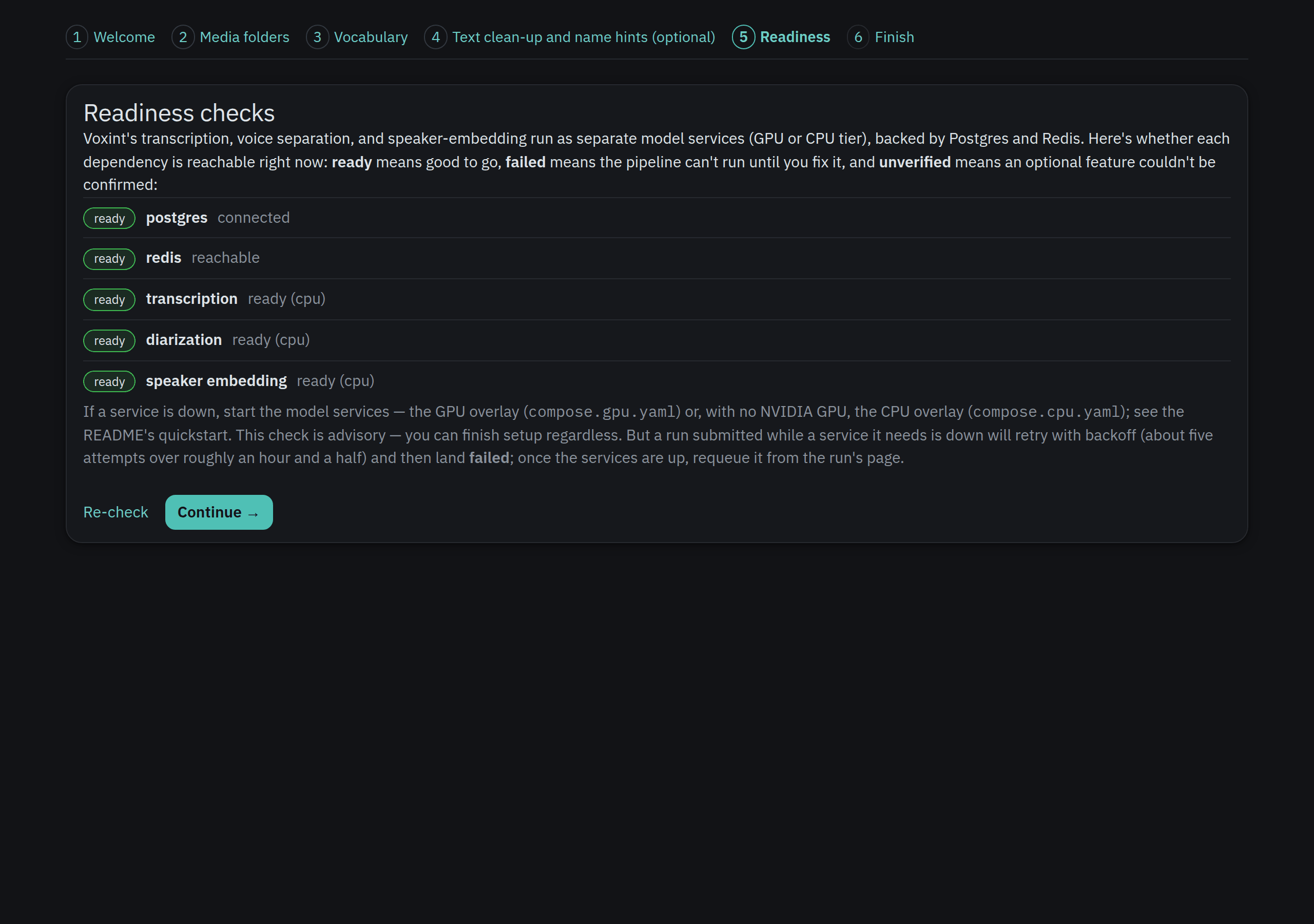
- Enhancement won't turn on. Either no API key is configured (neither a saved key nor one in the environment), or the LLM time budget does not fit the transcription stage's lease. The LLM section (on the AI tab) tells you which. Enter a key to fix the first; the second is an installation setting your maintainer can adjust.
The review console
- I submitted a run while a model service was down, and it failed. A run submitted while a service it needs is unavailable does not fail instantly. It retries with backoff (roughly five attempts over about an hour and a half) and only then lands as failed. Bring the services up, then requeue the run from its page. Nothing is lost; it simply starts over cleanly.
- The transcript shows fewer (or more) speakers than I heard. This is usually correct behavior being misread rather than a bug, for example two people with similar voices merged, or one person split across a noisy passage. Before correcting it by hand, read interpreting-diarization.md, which explains what the diarizer is doing and how to read its output.
- "Does nothing leave my machine?" By default, all processing (transcription, diarization, speaker identification, and review) happens locally on your hardware, and no audio or transcript is sent anywhere. There are exactly three features that reach the network, and each is off unless you, the operator, turn it on: fetching media from a URL (on the General tab, under Features), web research (on the Media tab, under Sources and research), and sending transcript segments to a remote LLM endpoint (on the AI tab, under LLM enhancement, if you point it at a remote model). Leave those off and Voxint stays entirely on your machine.
Checking your hardware
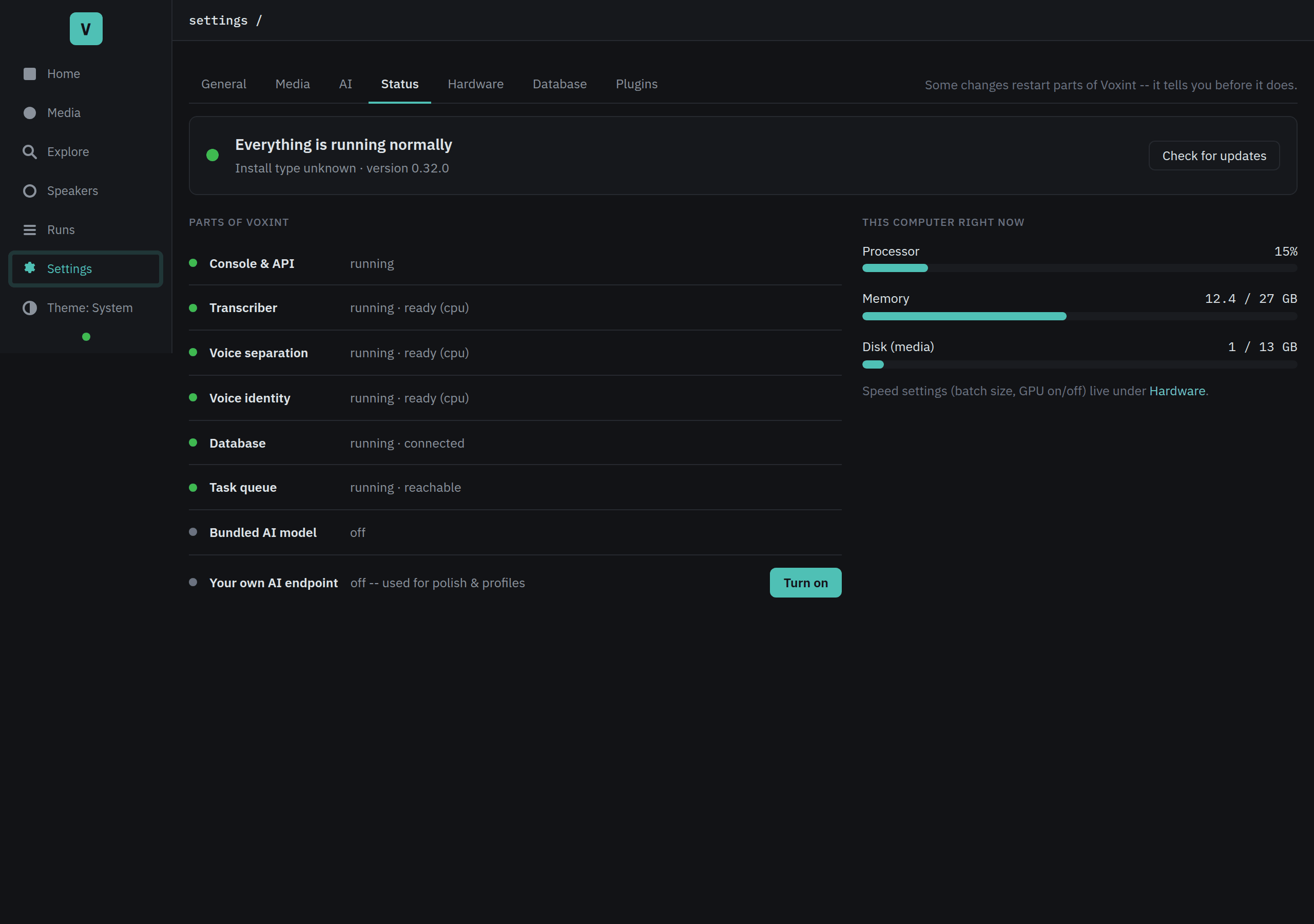
If runs feel slow or keep failing, open the Status tab in Settings. At the top, a banner shows whether everything is running normally, your install type, GPU acceleration status, and the current version. A Check for updates button links to the releases page.
Below the banner, the page has two panels:
- Parts of Voxint lists each component (Console & API, Transcriber, Voice separation, Voice identity, Database, Task queue, Bundled AI model, Your own AI endpoint) with a colored dot showing its health. The two AI rows are independent: the bundled model reports its own health when it is active, and the "Your own AI endpoint" row says "not configured" until you point it at a service of your own (it has a Turn on or Set up button until then).
- This computer right now shows live gauges that refresh every 15 seconds: Processor, Memory, and Disk (media) on every install; Graphics card and Graphics memory appear when a GPU is available.
The Hardware tab shows pipeline models: which model each part of the pipeline is running right now for transcription, speaker diarization, and speaker embedding. It reads this live from each service as the page loads, so it reflects what is actually running, not what a config file claims. You cannot change models here; that is an advanced task covered in Changing pipeline models.
The status page speaks up in only two cases, each with one plain fix:
- The card is too hot and has slowed itself down (thermal throttling). The graphics driver does this on its own to protect the hardware, so nothing is damaged, but transcription runs slower until it cools. Improve airflow around the machine, or give it a break between long recordings.
- A service is full and turning new work away. This is normal under a burst; the run is not lost, it waits and retries. If it happens constantly, you are asking one modest card to do too much at once. Submit fewer recordings at a time, or see the single-GPU tuning notes in operations.md.
A high graphics memory (VRAM) number on its own is not a problem. The services hold their models in memory for the whole session by design; that is expected, not a leak. The status page shows it as context, never as an alarm.
A run keeps failing with an out-of-memory error. Open the status page and check the graphics memory gauge while a run is going. If it is genuinely running out, the fix is to lower how much runs at once. The single-GPU section of operations.md walks through the levers, and is a setting your maintainer usually adjusts.
Voxint never pauses your work on its own. These signals are advisory: they tell you what is happening so you can decide, and the graphics driver already handles the actual hardware protection.
Related guides
- Add media & manage runs
- Review & adjudicate
- Manage speakers & export
-
Setup: install Voxint on your OS and hardware.
-
Onboarding: the guided installer, the setup wizard, and the built-in tutorial.
- Domain packs: what the per-folder packs do and how to pick one.
- Interpreting diarization: how to read the speaker output before you correct it.