Reviewing and adjudicating a run
How to turn a finished pipeline run into a transcript you trust: name the voices, then check and correct the words.
Voxint listens to your recording and makes its best guesses about who spoke, when, and what they said. This guide walks you through the review console, where you have the final say: you confirm the matches Voxint is unsure about, rule on the voices it could not match, and change any automatic match that is wrong.
Review has two steps: start with the people, then check the words.
- Step 1, Identify the voices: decide who each detected voice really is (or that they should be left out). Opening a run takes you here.
- Step 2, Verify and correct the transcript: read through the words, confirm the ones that are right, and fix the ones that are wrong.
The console leads you from Step 1 to Step 2, and you can go back to the people at any time. Checking the words is recommended, not required. Voice matches and your speaker rulings determine when a run leaves Review.
New to Voxint? The bundled guided tutorial walks this whole loop on a sample recording before you use your own audio; a good place to start. This guide is the fuller reference for the same work.
Related how-to guides: Add media and manage runs · Managing speakers and exporting · Settings and troubleshooting. See also onboarding and, when the number of voices surprises you, interpreting diarization.
Before you start
You review a run after it finishes processing. Adjudication does not run while transcription is still working. A run only reaches you once the pipeline has produced its transcript and split it by voice.
Everything lives on your own machine. Open the console at
http://127.0.0.1:8080/ and sign in with the username and password you set
during install (VOXINT_USER, default admin, and VOXINT_PASSWORD). Nothing
leaves your computer.
1. Open Review and choose a run
Click Review in the sidebar. The Review page lists every completed run that still has voices needing a human ruling. Each row shows:
- a friendly title (the recording's own title when it has one, otherwise a cleaned-up filename) with the folder name beneath it when the file came from a registered folder,
- the recording's duration and its age ("3 hours ago"; hover for the exact time),
- a progress bar that fills as you resolve voices ("2 of 4 resolved"), and
- a Review button.
You can sort Oldest first (the default) or Most voices to resolve.
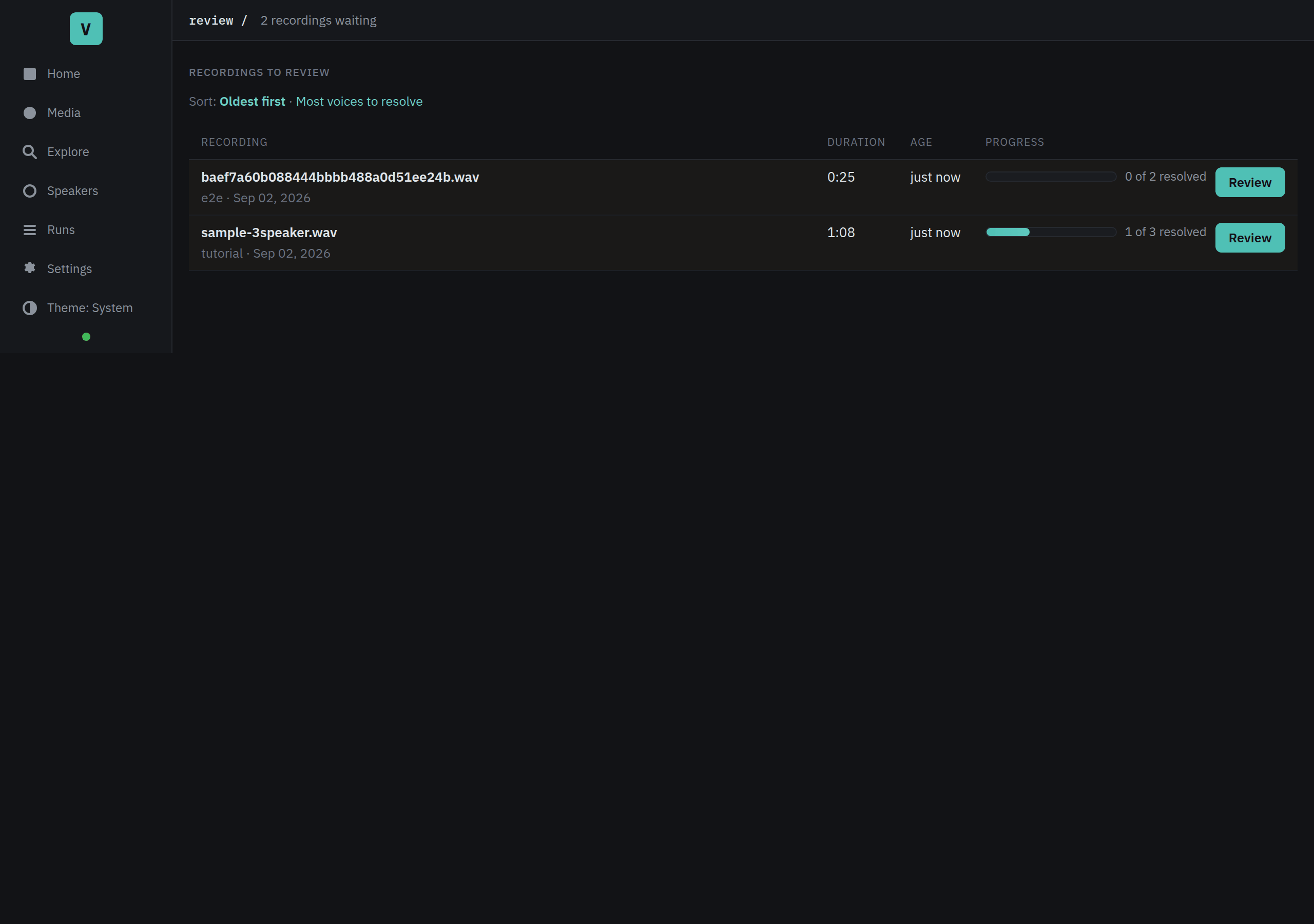
Press Review on the run you want. In the default single-operator mode, the workbench claims the run for this browser tab as it opens. The transcript editor does the same when you open it. There is no separate claiming step.
In multi-user mode, the queue adds a Claimed by column and you claim work manually with Claim for review. Use Release claim when you want to hand it to someone else.
Workflow A: Identify the voices
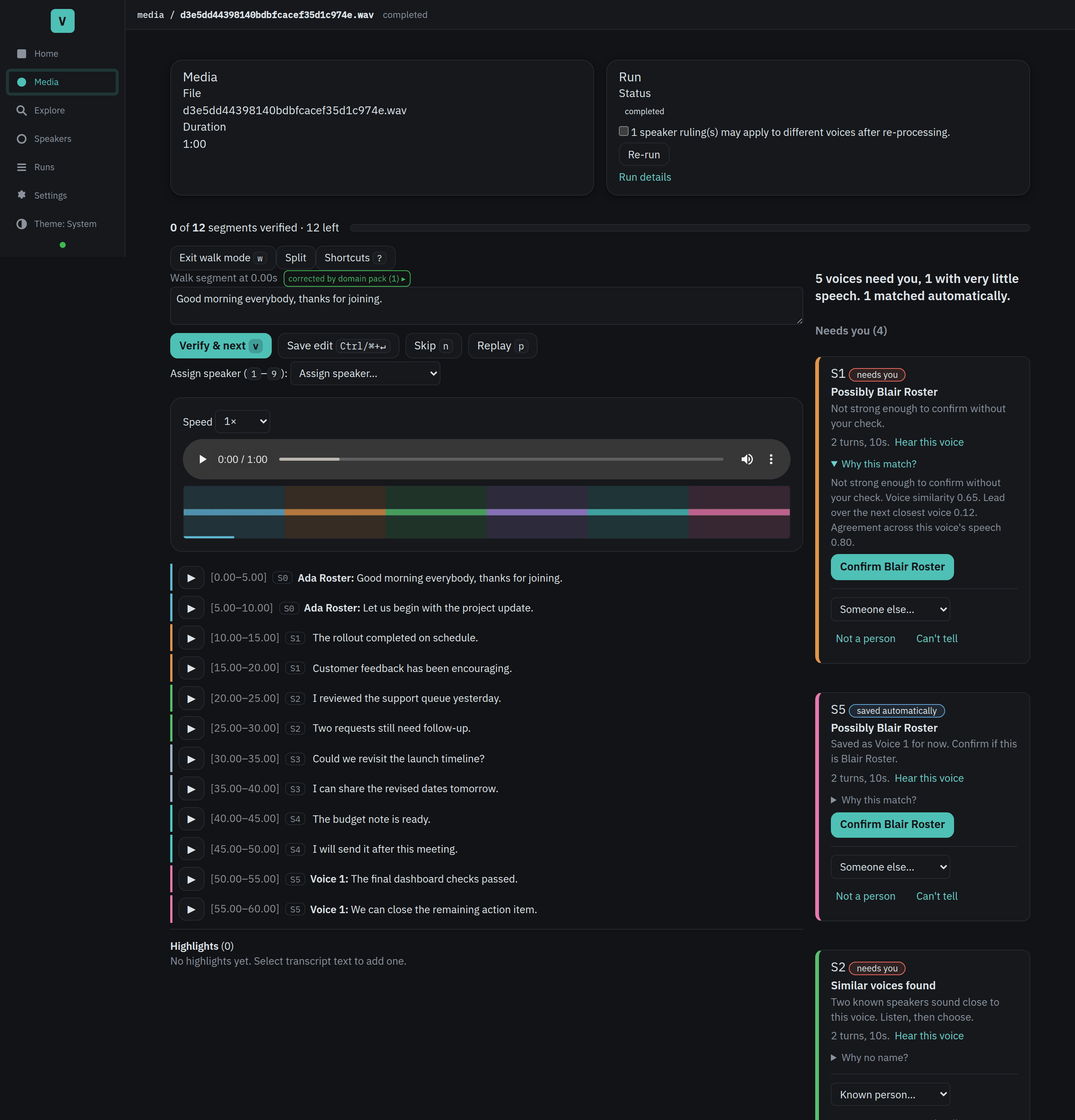
Opening a run shows the editor with the speaker rail beside the transcript.
Voxint separated the recording into voices and gave each one a label such as
SPEAKER_00. The sentence at the top tells you how much work remains, for
example "2 voices need you, 1 with very little speech. 3 matched
automatically." When you are done it reads "Every voice has a ruling." If
matching never ran on the recording, or you had not added any people yet when
it ran, the sentence says that instead, so an empty result is never mistaken
for a clean one.
The rail puts voices into these groups:
- Needs you is open. These voices need your decision.
- Too little speech to identify is closed at first. These voices still need a ruling, so open the group and review them.
- Matched automatically is closed while work remains. These voices are settled by a strong voice match or an automatic save.
- Your rulings is also closed while work remains. It holds decisions you made during review.
When no voice still needs a ruling, Matched automatically and Your rulings open. You can open or close any group shown with a disclosure arrow.
Read a voice card
A card starts with the voice label and a pill such as needs you or saved automatically. Its headline and reason explain what Voxint found:
- Possibly Jordan means the voice resembles a known person but needs your check. The reason reads Not strong enough to confirm without your check. Press Confirm Jordan if the match is right. Confirming assigns the existing speaker to this recording. It does not add another voice sample.
- A possible match can also say Saved as Voice 4 for now. Confirm if this is Jordan. Voxint already saved the voice under a temporary name, but the possible match still needs your ruling.
- Similar voices found means two known speakers sound close. No candidate name or Confirm button is shown. Open Why no name? for the explanation, then listen and choose.
- Who is this? appears when Voxint has no useful candidate. The reason says why in plain words, for example Not enough clear speech to match. or No known speakers to compare against.
Below the reason, the card shows the number of turns and seconds of speech. If the audio can be played from the timeline, Hear this voice jumps to the first transcript line for that voice and plays it. Listen before you rule.
Open Why this match? (or Why no match? on a card with no candidate) to see the reason followed by the raw scores, such as "Voice similarity 0.72. Lead over the next closest voice 0.05. Agreement across this voice's speech 0.75." With one known person on your roster the lead reads "none (only one known speaker)." These scores are never shown as percentages.
A voice match and a heard name are different evidence. A voice match compares the sound with saved voice samples. The line Heard name (unverified): "Alex". reports a name spoken in the recording. Treat it as a lead and listen before assigning the voice.
Rule on a voice
Use the actions on the card:
| Action | What it does |
|---|---|
| Confirm Jordan | Records your ruling that this voice is the suggested known person. It does not add a voice sample. |
| Someone else… or Known person… | This voice is a different person from your roster: a searchable speaker picker opens where you can type to filter by name, use arrow keys to navigate, and press Enter to select. Type a name that does not exist yet and choose Create "[name]" to add them to your roster on the fly; that keeps this voice as their sample. Press Escape to close the picker. |
| Not a person | This "voice" is background noise, music, a TV, or someone you do not want in the results. Leaves it out. |
| Can't tell | You genuinely cannot tell who this is. An honest ruling that settles the voice; you can change it later. |
Check automatic matches and earlier rulings
Open Matched automatically to see voices already shown as a known person. A voice match has a voice match pill and reads Shown as Jordan, with the reason Matched by voice. An automatically saved voice has a saved automatically pill and reads Saved as Voice 4. Its reason is Saved automatically so Voxint can recognise this voice later. Name them on the Speakers page. The Speakers page link takes you there.
Open Your rulings to see rows with a your ruling pill. They read the person's name with Your ruling., Left out with Your ruling: not a person., or Could not tell with Your ruling.
Each row has Change. Press it to reveal the same actions with a Reassign to… picker. Press Hide to close the actions again.
Hear a voice before assigning (popover preview)
When the speaker assignment popover is open (click a speaker name in the
transcript, or press s), each speaker option shows a Hear this voice
button. Clicking it plays a representative segment of that speaker without moving
the review cursor or closing the popover. Listen, then pick the right person.
The button only appears when audio playback is available. Playback stops automatically when you close the popover or make your choice.
Undo a ruling
After assigning a speaker, excluding a voice, or ruling "can't tell," an undo toast appears at the bottom of the screen. Click Undo within five minutes to reverse the ruling and restore the label to its previous state.
The undo window is enforced on the server: if the label was re-ruled by another action before you click Undo, the toast tells you so. Closing the toast, waiting past the deadline, or making another ruling dismisses it.
Undo is available for label-scope rulings only. Segment-scope corrections (reassigning a single line) do not offer undo yet.
Merge suggestions
After you assign a speaker to a label, the console checks whether other unresolved labels have voices that match the same person. If it finds any, a merge suggestion toast appears (stacked above the undo toast if both are showing).
The toast names the suggested speaker and offers two choices:
- Merge opens a preview of the exact change (how many labels move), then confirms.
- Dismiss (the x button, or wait for it to expire) skips the suggestion.
The suggestion only appears for labels that have no human ruling and no grounded match, so it will not override your earlier decisions.
One person split across two labels ("same speaker")
Diarization sometimes splits one person into two labels: you'll see
SPEAKER_00 and SPEAKER_03 that are clearly the same voice. Fix it right here
with the "Same speaker across labels?" panel:
- Tick the labels that are the same person in this recording.
- Choose who they are: an existing speaker, or Add a new person….
- Press Preview merge… to see the exact change Voxint will make (how many turns and transcript segments move) before anything happens.
- Confirm.
This is run-local: it records one ruling per label within this recording. It does not merge identities across your whole roster; that stays a deliberate action on the Speakers page, and the preview points you there if two of the ticked labels are already different roster people. Nothing here is destructive; you can re-rule any label afterward.
Seeing fewer or more voices than you heard? That's often correct behavior being misread: a quiet interjection, crosstalk, or a very short clip. See interpreting diarization before you assume it's wrong.
Workflow B: Verify and correct the transcript
From the workbench, follow Continue to checking the words → to open the
transcript review page (/review/{id}/transcript). This is where you read the
words, mark the right ones as checked, and fix the wrong ones. It works as a
steady loop: read a line → confirm it → move to the next. When you have been
through every line, the page says so and offers to export or go back to Review.
To return to the speakers, use ← Back to the people at the top.
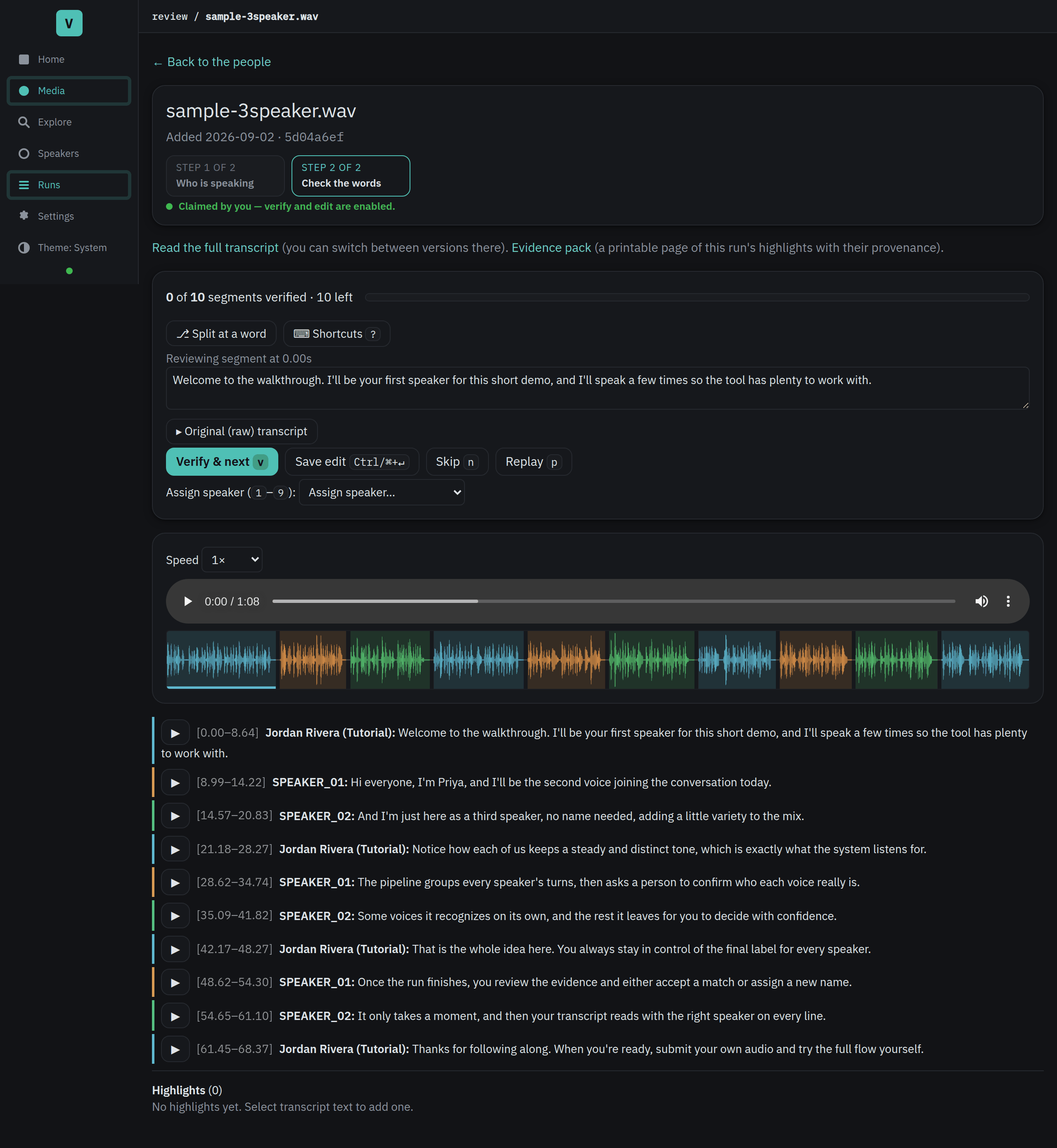
At the top you'll always see a live count, "7 of 32 segments verified", so you know how far you are.
The verify-and-advance loop
The page starts on the first line that hasn't been checked yet. For each line:
- Listen to it (it plays as you land on it; replay any time).
- If the words are right, Verify it, and Voxint marks it checked and jumps you to the next unchecked line.
- If the words are wrong, edit them (below), then verify.
- Skip a line to come back later.
You can drive this entirely with the keyboard (see Keyboard shortcuts) or entirely with the on-screen buttons, whichever you prefer.
Lines the model was unsure about
Some lines carry a small dashed "uncertain" chip. That means the transcriber reported low confidence on that line; it's flagging the parts most worth a listen, so you don't have to re-read everything. The label is deliberately honest: uncertain is not the same as wrong. It's a nudge to check, not a claim of an error, and Voxint never puts a percentage on it. (Older runs made before this feature simply won't show the chip.)
Fix a line's words
Click a line to bring it into the edit box, correct the text, and save with Ctrl+Enter (⌘+Enter on a Mac). A few things to know:
- Voxint keeps your correction beside the original; it never overwrites what the model actually heard. Exports show your corrected wording by default, and the raw version is always still available.
- Editing a line clears its "verified" mark: corrected words should be re-checked, so the line rejoins the queue for a fresh confirm.
- Clearing the box (reverting to the model's wording) removes your correction.
- Unsaved-edit warning: if you have unsaved text in the box and try to verify or move on, Voxint warns you once rather than silently throwing the edit away. Save it (Ctrl/⌘+Enter), or repeat the action to discard and continue.
Corrections your domain pack made
If you run with a domain pack that declares corrections, some lines are fixed automatically before you ever see them: a recurring mishearing turned into the right spelling every time. When that happened on the current line, you'll see a "corrected by domain pack" marker next to the line, kept deliberately separate from the "edited" badge, which means a change you made. Expand the marker to see exactly which rule fired: the phrase it matched and what it became.
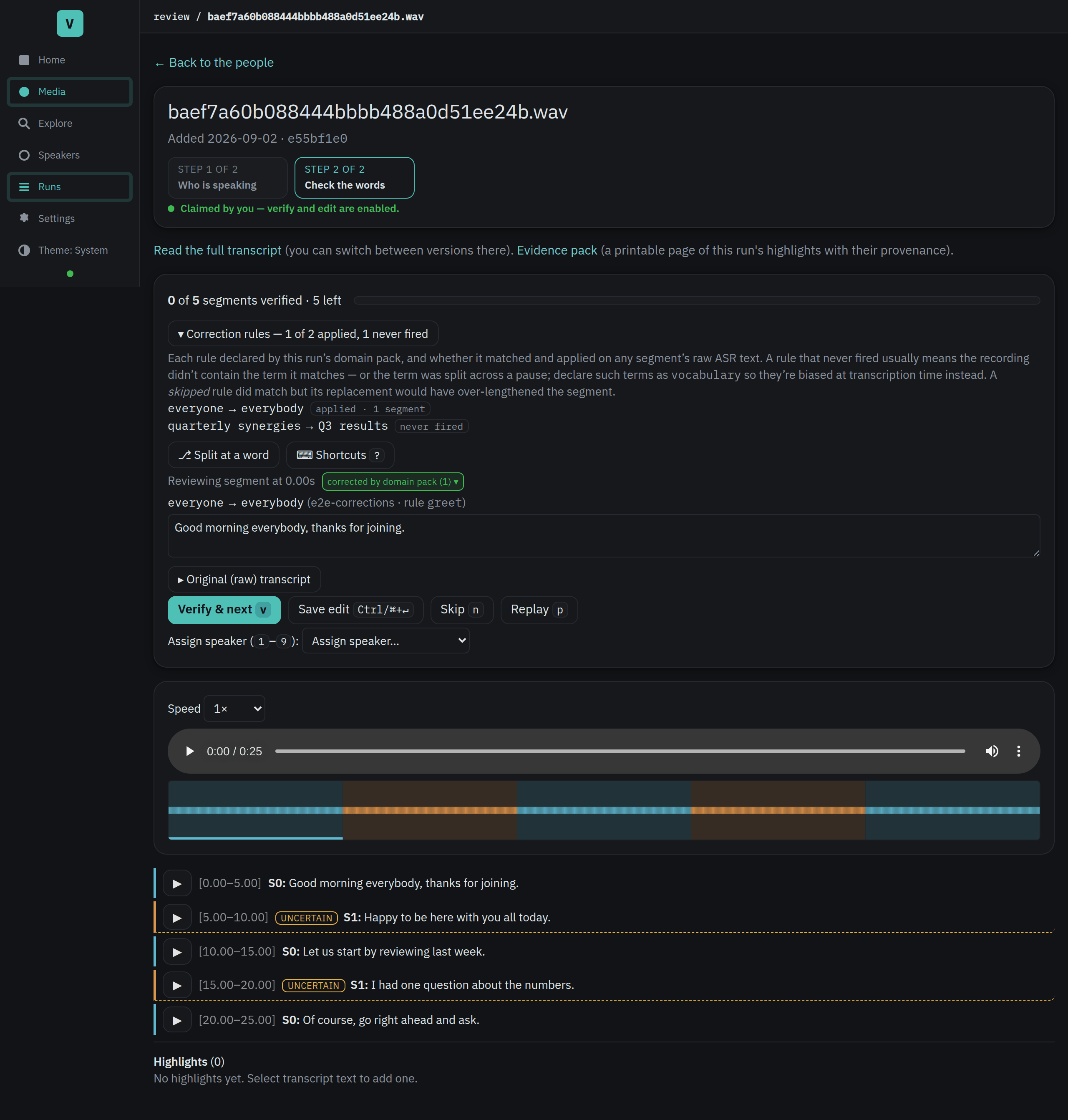
- Compare against the original. Open Original (raw) transcript to see the exact words the model first heard, next to the corrected version. You can copy the raw text, or Reset edit to raw to drop it back into the edit box.
- Reset doesn't save. "Reset edit to raw" only fills the box; nothing is stored until you Save, so you stay in control (and the unsaved-edit warning still applies).
- Your edit wins. The moment you save your own wording for a line, the "corrected by domain pack" marker goes away; from then on the line shows your text, not the pack's automatic edit.
- A corrected line can't be split. Splitting a line at a word (below) is turned off once a correction has fired on it; Voxint tells you why rather than offering a cut that wouldn't work.
At the top of the page, Correction rules summarizes how the pack's rules did across the whole run: how many applied, and which ones never fired. A rule that never fired usually means the recording didn't contain that term, or the term was split across a pause. For terms that get broken across pauses, add them to the pack's vocabulary (which nudges the transcriber up front) instead of relying on a correction after the fact.
The waveform strip
Under the audio player sits a compact waveform, a colored strip where each band is tinted for the speaker who was talking, using the same colors as the transcript. It's a map of who spoke when. Click anywhere on the strip to jump to that moment and select the matching line (overlapping speech is marked, and stretches that were spoken but not transcribed still show up, so the picture stays honest). If you click a spot with no transcript there, whether a silent gap or speech that was never transcribed, the strip says so instead of doing nothing. A marker tracks playback and shows where your review cursor is.
You can also click and drag across the strip to select a time range. The selected region gets an accent-colored overlay, and a Play selection button appears below the strip for bounded playback (audio plays the selected range and stops). A time display shows the start, end, and duration. Click Clear or press Escape to dismiss the selection. A plain click (no drag) still seeks as before and clears any prior selection.
Split a segment at a word
Sometimes one transcript segment actually contains two speakers: the diarizer drew the boundary in the wrong place. You can cut it at the right word:
- Press Split at a word to turn on split mode.
- The current line's words become clickable. Click the word where the new speaker starts, and Voxint cuts the segment just before it.
The two halves then stand on their own, and you can give each one the correct speaker (below). A few honest limits: a segment can only be split when its words line up cleanly with what was transcribed (Voxint tells you plainly when one can't be split), a split segment can't also be free-text edited (splitting and editing are mutually exclusive), and a segment can be split into two parts, not more, in this release.
Reassign a segment (or half of one) to another speaker
Each line has a speaker picker so you can hand it to the right person without leaving the transcript. The picker is a searchable combobox: type to filter by name, use arrow keys to navigate, and press Enter to select. If you need a new speaker, type their name and choose Create "[name]" to add them to the roster on the fly.
- A whole segment: with a line focused, open the Assign speaker picker, or press a number key 1–9 to assign it to the 1st–9th speaker on your roster. Press 0 to reset the line to its detected speaker (undo your override).
- Half of a split segment: after you split a segment, each part gets its own picker. Choose the speaker for each half independently, or pick inherit to send it back to following its label.
Reassigning changes attribution only (it never rewrites the words), and it flows through to your exports.
Keyboard shortcuts
The transcript review page is built to run from the keyboard. Press ? at any
time, or click the Shortcuts button (it shows the ? accelerator), for the
same cheat-sheet built into the console.
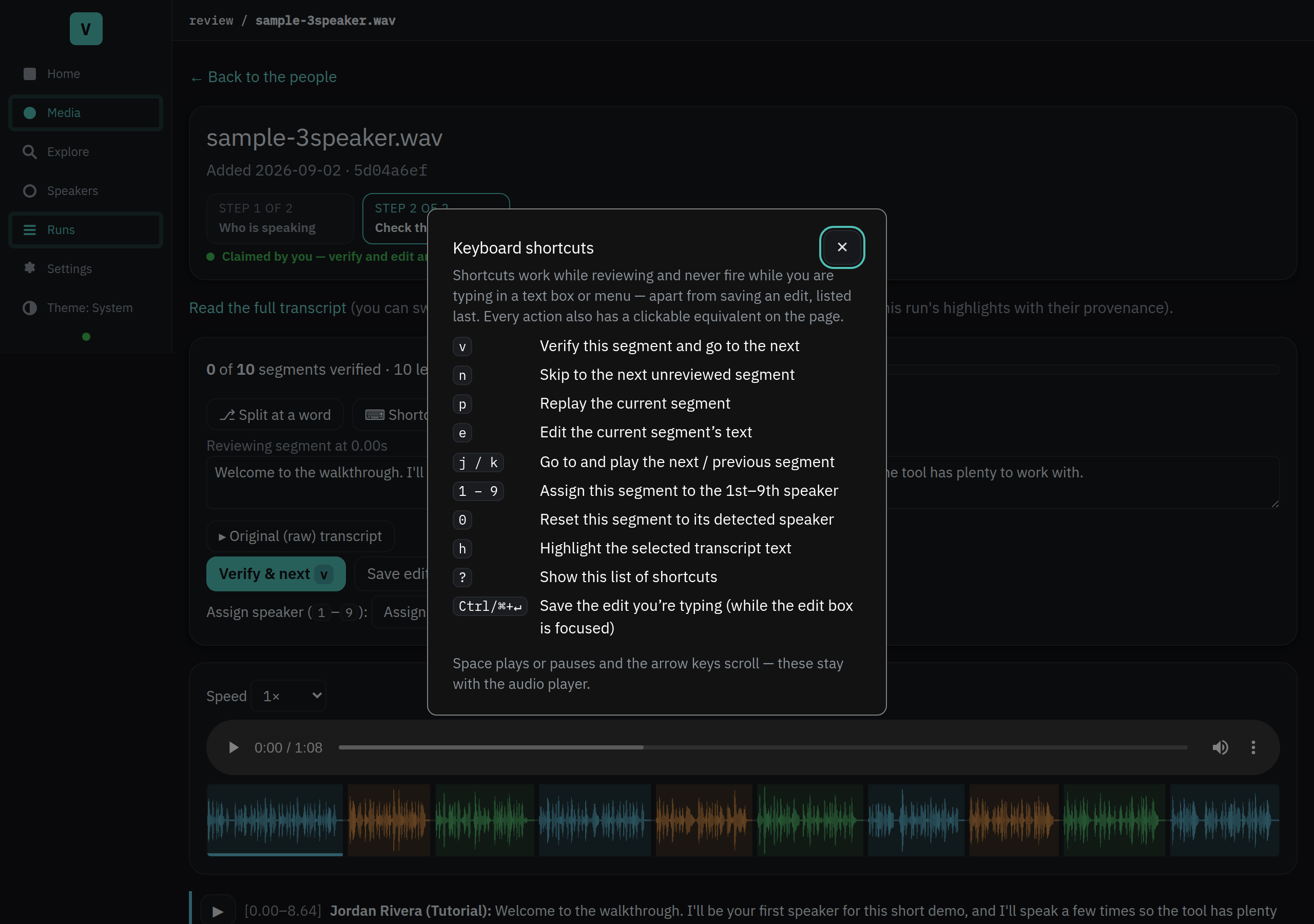
| Key | Action |
|---|---|
| v | Verify this line and go to the next unchecked one |
| n | Skip to the next unchecked line |
| p | Replay the current line |
| e | Edit the current line's text |
| j / k | Go to and play the next / previous line |
| 1–9 | Assign this line to the 1st–9th speaker on your roster |
| 0 | Reset this line to its detected speaker |
| = | Assign this line to the previous line's speaker |
| s / @ | Open the speaker assignment popover |
| d | Toggle the download transcript panel and focus it |
| ? | Show the cheat-sheet |
| Ctrl/⌘+Enter | Save an edit (while typing in the edit box) |
A few deliberate rules:
- Shortcuts never fire while you're typing in a text box or menu, so
vtypes a "v" in the edit box, it doesn't verify. - Space (play/pause) and the arrow keys (scroll) stay with the audio player, as you'd expect.
- Every shortcut also has a visible, clickable control on the page; the
keyboard is a shortcut, never the only way in. The digit keys mirror the
on-screen Assign speaker menu;
1–9do nothing on a run that has no speakers yet, and the cheat-sheet says so.
Finishing a run
A run leaves the Review list once every voice has your ruling or a strong voice match. A voice with very little speech still needs a ruling; Not a person and Can't tell both settle it. Checking the words in Step 2 is recommended, and it is how you get a transcript you can fully trust, but it is not what removes the run from Review. A run can drop off the list with some lines still unchecked. To keep checking or to export it afterwards, reopen it from the Runs page (Media in the sidebar).
Now read or export it. The Download transcript menu on either the workbench or the transcript page offers plain text, Markdown, subtitles (SubRip / WebVTT), JSON, and RTTM, with your corrections and speaker names baked in. The same menu has a Read on screen link that opens a clean reading view of the transcript, no download needed. See Managing speakers and exporting for the formats, the reading view, and when to use each.
Related guides
- Add media & manage runs
- Manage speakers & export
- Settings & troubleshooting
- Setup: install Voxint on your OS and hardware.
- First-run walkthrough: the setup wizard and guided tutorial.