Add media and manage runs
How to get a recording into Voxint, follow it through the pipeline, and look after the run it produces.
This guide shows you how to get audio or video into Voxint, follow it as it is processed, and look after the resulting runs. It is written for the person doing the work, with no coding required for the browser paths.
Everything here happens on your own machine. The console lives at
http://127.0.0.1:8080/ and asks for the username and password you set during
setup (a standard browser login box). Nothing is uploaded to the internet, and
Voxint does not reach out anywhere on its own. The one exception is the "paste a
URL" feature below, which downloads the file you ask it to.
If you have not installed Voxint yet, start with setup and the onboarding walkthrough. To read and correct results once a run finishes, see reviewing and adjudicating.
The short version
There are three ways to add a recording:
- Upload it in your browser. The simplest way, and the best place to start.
- Paste a URL. Voxint downloads the audio or video for you.
- Point at a local file or a watched folder. For files already sitting in the media area Voxint is configured to read.
Once a recording is in, Voxint runs it through six stages (download, prepare, transcribe, identify speakers, enhance, and finalize), and you can watch the progress on the run's page. When it finishes, you review it. Along the way you can requeue a run that failed, cancel one that is still going, tuck a finished one out of sight, free up disk space, and jot down notes.
Add media
1. Upload in the browser (start here)
This is the most direct way, and it needs nothing but the files on your computer. You can upload one file or a whole batch at once.
- Open Media in the sidebar. If your Voxint has the Media library turned on, this takes you to the Media page. Otherwise it opens the Runs page.
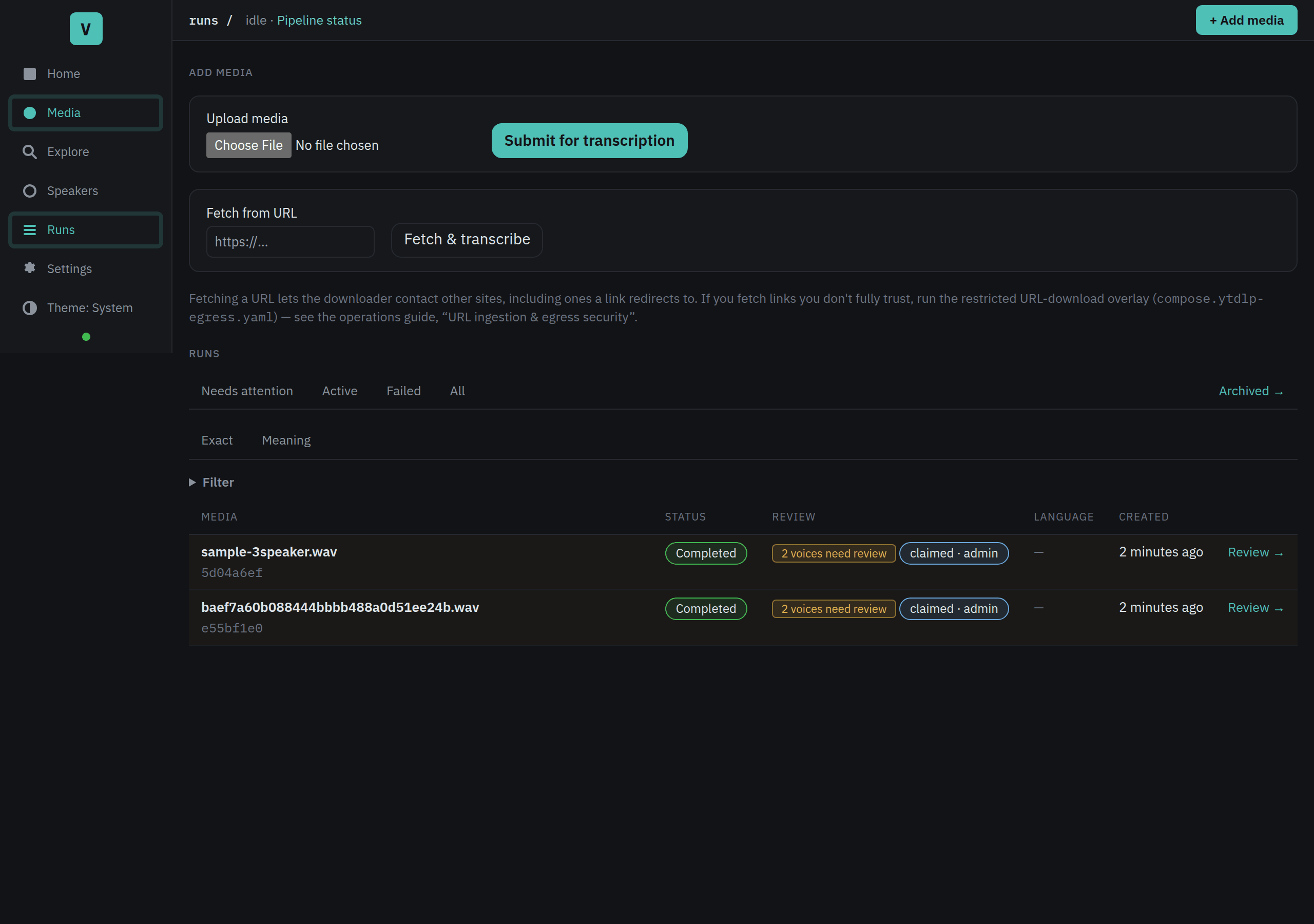
- Click + Add media, then Upload from this computer.
- Pick one or more audio or video files. You can also drag files from your file manager and drop them on the upload area.
- A list shows each file with its size. You can remove any file before starting, or add more.
- Click Upload N files (or Upload 1 file for a single recording).
Each file uploads one at a time with a progress bar. When a file finishes, it moves to Queued and Voxint starts processing it right away. If one file fails (too large, or a connection hiccup), the others keep going. Failed files show the reason and offer a Retry button.
When the batch is done, you see a summary ("5 of 5 queued for transcription"). Reload the page to see the new recordings in the library.
On the Media page, use the search box to find a recording by name or folder. The status filter offers Needs review, Failed, Reviewed, and All. Each recording's action matches its state: Review, Retry, or Open.
A few honest notes:
- There is a size limit. Very large uploads are rejected so a single file can't exhaust the server. If your file is over the limit, use one of the two methods below instead, or split the recording.
- Each upload is durable the moment Voxint accepts it. Even if the task system is briefly busy, your runs are safely queued and will start on their own, so you don't need to resubmit.
- Keep the page open while a batch is uploading. If you close the tab mid-batch, any files that already finished are safe, but the remaining ones are lost and you would need to re-select them.
2. Paste a URL
If your recording lives on a web page, you can give Voxint the link and let it fetch the file. This uses a tool called yt-dlp as the run's first stage.
- On the same page where you upload files (the Media page if the Media library is on, or the Runs page otherwise), find the Fetch from URL box.
- Paste the link and click Fetch & transcribe.
Voxint downloads the media, then processes it exactly like an uploaded file.
Please read this before you paste a link you don't fully trust. Fetching a URL is not a locked-down sandbox. It is Voxint reaching out to the internet on your behalf, with the same access your machine has, and it follows redirects to wherever the link points. So:
- Only fetch links from sources you trust.
- If you need to fetch links you are unsure about, run the optional restricted download overlay, which pins the downloader to vetted public addresses. The full explanation is in operations · URL ingestion & egress security.
If you don't want this feature available at all, you can turn "Download media from a URL" off in Settings; see settings and troubleshooting. When it is off, the Runs page simply says URL ingestion is disabled and the box does not appear.
3. A local file or a watched folder
Voxint can also work from files that already live in its media area, the
folder (called MEDIA_ROOT) that you told Voxint it may read during setup.
This is the one point that trips people up, so here it is plainly: these paths
are inside Voxint's configured media area, not anywhere on your computer.
Voxint can only see files you have placed under that area. A path like
interviews/session-1.mp3 means "the file session-1.mp3 in the interviews
sub-folder of the media area", not an arbitrary location on your disk.
There are two ways to use the media area.
Register a folder (set it up once, in the browser). In Settings → Media folders you can browse the folders inside your media area and register the ones Voxint should work with. You can also give each folder a domain pack, which tunes the vocabulary for that kind of recording. The folder browser is also part of first-run setup; see the onboarding walkthrough and settings and troubleshooting.
Turn on automatic ingest (optional). Registering a folder does not, on its own, start anything. It tells Voxint where your media lives and (with the setup wizard's scan) lets you queue what is already there. To have Voxint keep watching and pick up new recordings on its own, turn on Automatic ingest, the toggle just below the folder list in Settings → Media folders. It is off by default. Once it is on, Voxint checks your registered folders on a schedule and starts a run for each new recording it finds. Files it has already picked up are skipped, so you can drop a whole batch of interviews in and let them queue themselves. The toggle applies immediately, no restart. A status line right there shows the last check ("Last checked …, picked up 3 new files; 12 already known; 2 waiting to settle").
Two things help it behave the way you expect:
- Copy files in with a move/rename when you can. Voxint waits until a file has stopped changing before it ingests it, so a recording that is still being copied in is not picked up half-written. The most reliable way to add files is to copy them somewhere else first and then move (rename) them into the watched folder in one step.
- "Already known" means already added, not necessarily finished. A file is skipped once Voxint has a record of it, including one whose earlier run failed. The watcher will not retry a failed run; requeue it yourself from the run's detail page. A file you rename or move looks new and will be picked up again.
Describe a recording with a sidecar file
When automatic ingest picks a recording up, you can hand Voxint some context
along with it: a title, the names of the people speaking, working notes, or a
domain pack. You do this with a sidecar file, a small text file that
travels next to the recording and is written in a simple key: value format
called YAML.
Say your recording is interview.wav. Create a plain-text file named
interview.wav.yaml in the same folder, with any of these lines:
title: Interview with Jane Doe
speakers:
  - Jane Doe
  - John Smith
domain_pack: medical
notes: |
  Recorded at the spring conference.
  Audio is a little echoey after minute 40.
Every line is optional. Here is what each one does:
| Key | What it does |
|---|---|
title |
Becomes the recording's display name in the queue and on the run page. |
speakers |
Names of people likely in the recording. Voxint treats them as trusted name hints when it suggests speaker names during review, so these names surface sooner and more confidently. |
domain_pack |
Picks the domain pack for this one recording. It wins over the folder's pack setting. |
notes |
Free text, saved as the run's operator notes. |
A few rules worth knowing:
- Naming.
interview.wav.yaml(the full file name plus.yaml) always works. The shorterinterview.yamlalso works, as long as only one recording in the folder is namedinterview.something; with both ainterview.wavand aninterview.mp4present, Voxint cannot tell which one you meant and will wait until you rename the sidecar to the full form. If both forms exist, the full-name one wins. The ending must be.yaml, not.yml. - Drop the sidecar with or before the recording. The sidecar is read once, at the moment the recording is picked up, and its contents are frozen onto that run. A sidecar that arrives after the recording was already picked up does nothing, and editing the file later changes nothing.
- A broken sidecar never loses your recording. If the sidecar has a problem (a typo in the format, a wrong kind of value, an unknown domain pack), Voxint holds the recording rather than guessing. The status line under Settings → Media folders tells you a sidecar needs fixing; fix the file and the next check picks the pair up.
- Extra lines are fine. Keys Voxint does not recognize are kept with the run for reference and otherwise ignored, so a sidecar written by another tool can carry its own bookkeeping without getting in the way. Anything in the file is stored with the run, so keep private things out of it.
Submit a single file (for people comfortable with the terminal). If you would
rather kick off one file by hand, Voxint has a command line. These commands are
for the Docker install: they run inside the running api container. (On the
docker-free native macOS preview there is no
container to exec into; use the browser upload, which does the same thing.)
# Submit one file already sitting in the media area (path is relative to MEDIA_ROOT):
docker compose exec api voxint submit path/to/file.mp3

# Fetch and process a URL from the command line:
docker compose exec api voxint fetch <url>
voxint submit is a one-off: it processes that single file once. With
Automatic ingest turned on, a registered folder is standing: set it up once
and everything you drop in gets picked up. Most non-technical operators will never
need the command line; the browser upload and automatic ingest cover the same
ground.
Watch a run
Every run has its own page (open it from the Runs list, then click open on a row). The page shows where the run is and what has happened.
A run moves through six stages, in order:
- acquire: download or locate the source file.
- prepare: convert the audio into the form the models need.
- transcribe: turn speech into text (Whisper).
- diarize & embed: work out who spoke when, and capture each voice's fingerprint (pyannote + TitaNet).
- enhance & match: tidy the transcript and match voices to known speakers.
- finalize: assemble the finished result.
Open the collapsed Technical details section on the run page to find the stage ledger. It lists each attempt at each stage: when it started, when it finished, and any error. You rarely need it unless something went wrong.
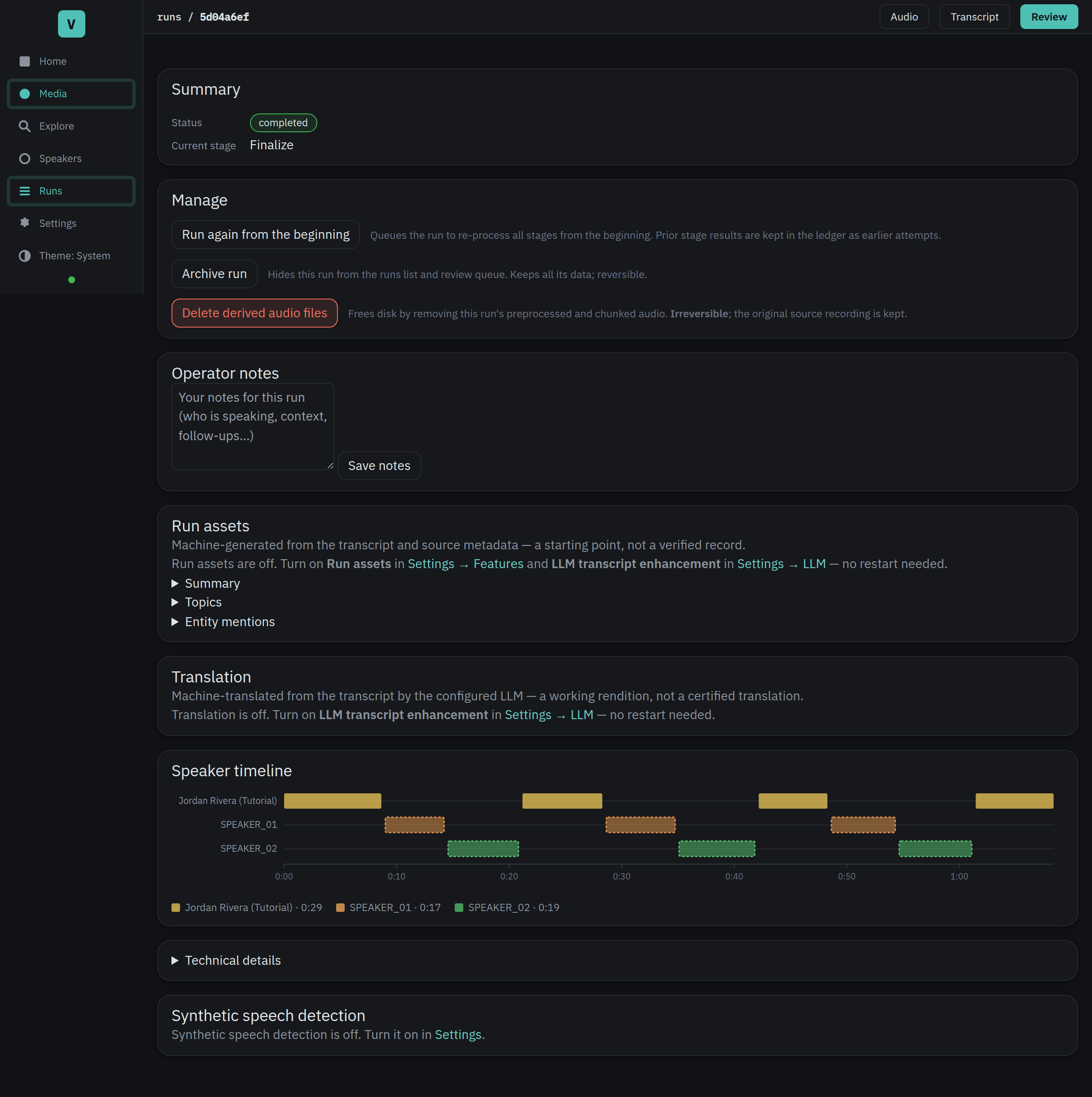
The run's overall status tells you the headline:
- queued: accepted and waiting to start. It will begin on its own.
- running: a stage is working right now.
- completed: all stages finished. Time to review it.
- failed: a stage hit an error it could not get past.
A failed stage is retried automatically a few times, with a growing pause between attempts. Only after those retries are exhausted does the run land in failed, at which point it waits for you (see below). If the failure was in the transcribe or diarize & embed stage, the most common cause is that the model services were not running; the run page says so and tells you how to start them.
Understand a failure
A failed run shows a plain-language reason and a hint for what to do next. If you need the original error message, open Raw error below it.
Retry a group of failed runs
Open the Failed tab on the Runs page to see runs with the same error grouped together. After you fix the cause, click Retry all on a group to retry every run in it at once.
The recording's language
Voxint listens to each recording and works out what language it is in, then shows that on the run page as Detected language, for example "Spanish (es)". It picks one language for the whole recording. Next to the language it may show a detection score: this is how sure the model is about the language it chose, not how accurate the transcript is. The Runs list has a Language column so you can see every recording's language at a glance, and a Detected language filter to show only recordings in one language. Recordings you processed with an older version of Voxint have no language recorded and show a dash.
Manage runs
The run page gives you a few controls for looking after a run.
Requeue a failed run
If a run failed, a Requeue button appears. Click it to retry from the stage that failed. This is handy once you have fixed whatever caused it (for example, started the model services). If you had the page open in an old tab and something changed underneath you, the requeue is safely refused rather than acting on stale information; just reload and try again.
Cancel a run that is still going
While a run is queued or running, a Cancel run button is available. Cancelling is cooperative, not a hard stop: the stage that is running right now finishes first, and then no further stages start. Your media and any partial results are left in place; cancelling does not delete anything.
Archive and un-archive a finished run
Once a run is finished (completed, failed, or cancelled), you can Archive it. Archiving reversibly hides the run from the Runs list and the review queue. Nothing is deleted: every bit of its data, including the record of your review decisions, stays intact. To bring it back, open it (the archived view is linked from the top of the Runs page) and click Un-archive.
You have to cancel a live run before you can archive it.
Delete derived audio to reclaim disk
Voxint keeps some working audio files while it processes a run. On a finished run you can click Delete derived audio files to remove them and free up disk space. This is irreversible, but it is also safe in the important sense: it only removes Voxint's own processed copies. It never touches the original recording, and it leaves the transcript and your decisions alone. If you ever need the audio back, you can re-run from the original source.
Add notes
The editor page has a Notes for this run box. Use it for anything you want to remember about the recording: who is speaking, the context, follow-ups to do later. Notes are yours; they are kept separate from any information Voxint scraped about the source, so the two are never confused.
Search your transcripts by meaning
Once you have a few finished runs, you can search across all of them at once, not just inside one transcript. Voxint offers two ways to search, side by side at the top of the Runs page:
- Exact browses your runs for the words you type, newest first. This is the ordinary keyword search.
- Meaning finds the passages that are about what you type, across every transcript, even when the exact words differ. Ask for "the argument about the parking budget" and it surfaces the right stretch of conversation whether or not anyone said those words.
Click Meaning to open the search page, type what you are looking for, and
press Search. Each result names the recording, the speaker, and the time range,
and shows a short snippet. Click a result to open that transcript scrolled to the
passage, with the line briefly highlighted so you can find it. To match words
exactly, put them in double quotes: a "quoted phrase" is found verbatim and
floated to the top of the results.
Meaning search runs entirely on your machine, with no LLM and no internet. It reads an index that Voxint builds from your finished transcripts, so a brand-new recording appears in results once its run has finished and been indexed. If the Meaning tab says search is off or that nothing is indexed yet, turn it on and, if needed, build the index for older recordings; the steps are in Settings → Semantic search and, in more depth, in semantic-search.md.
Next: review the results
When a run reaches completed, the last step is to read through it, fix any words the transcript got wrong, and confirm who each speaker is. That is covered in reviewing and adjudicating.
Related guides
- Review & adjudicate
- Manage speakers & export
- Settings & troubleshooting
- Setup: install Voxint on your OS and hardware.
- First-run walkthrough: the setup wizard and guided tutorial.